How much memory you need to run local AI models at home: a sizing guide for Macs and mini PCs
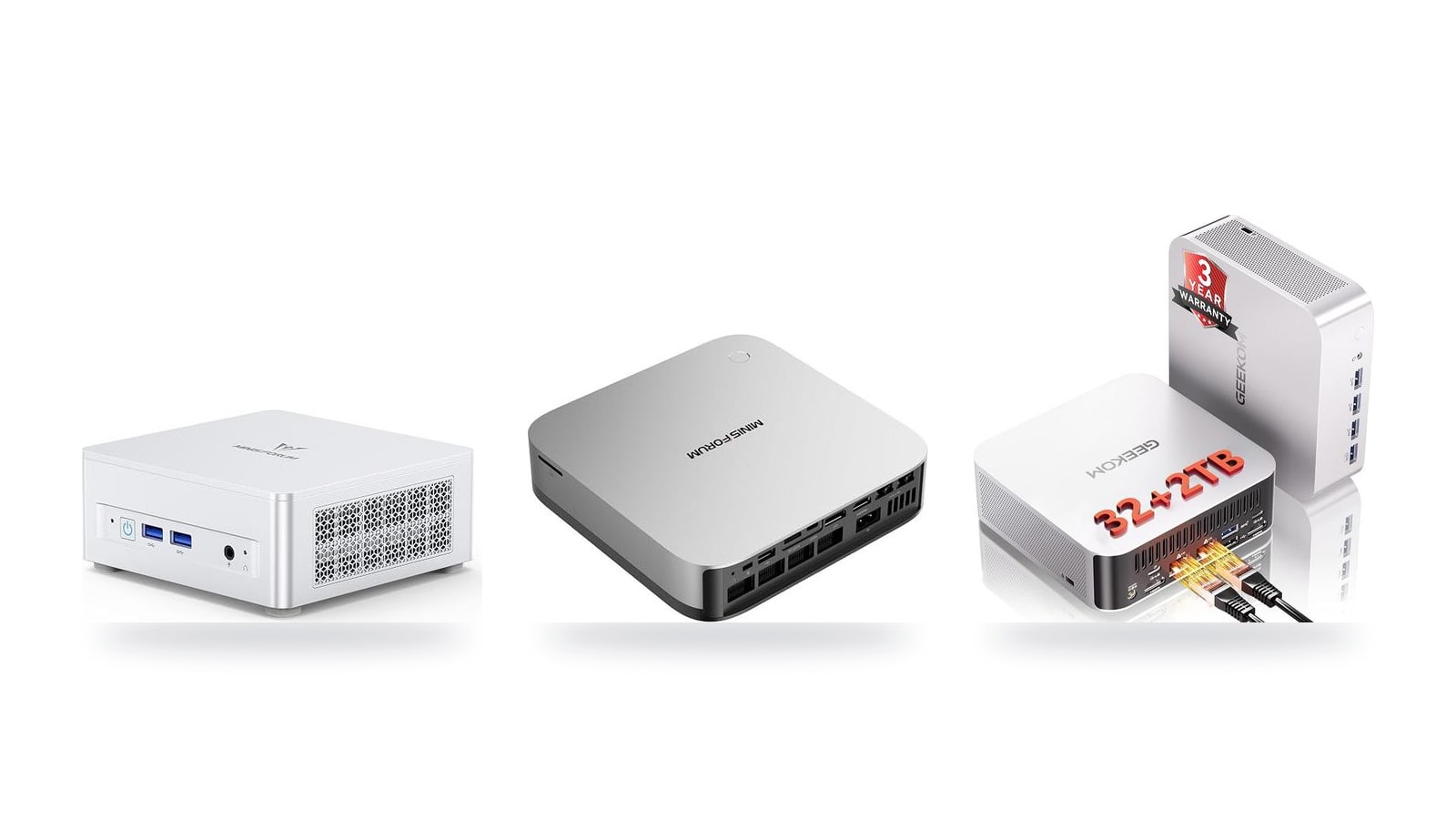
A 32B coding model at Q4 needs about 18–20 GB just for its weights. That rules out every 16 GB machine before you type a prompt, no matter how fast the CPU is. This guide turns parameters, quantization and context window into a RAM figure, then maps that figure to the Macs and mini PCs worth buying.
Why memory, not CPU speed, sets the limit
When a local LLM writes an answer, it produces one token at a time, and every token requires reading roughly the whole set of active weights from memory. An 8B model quantized to Q4 is about 5 GB, so each token means streaming about 5 GB from RAM to the processor. The arithmetic itself is light, so cores spend most of their time waiting for data. Generation is memory-bound, not compute-bound. A 12-core chip and a 16-core chip on the same memory bus will produce answers at nearly the same tok/s.
The same logic explains why a Mac mini (M6) and a MINISFORUM UM870 Slim can feel similar on small models but diverge on larger ones. Raw CPU benchmarks barely predict local LLM speed. Memory bandwidth (GB/s) sets the speed ceiling, and memory capacity decides whether the model runs at all.
Capacity is a hard ceiling, not a soft one
A model must fit entirely in fast memory: unified memory on a Mac, system RAM or iGPU-allocated memory on a mini PC, or VRAM on a discrete GPU. When it doesn't fit, one of two things happens:
- The model refuses to load. Ollama or LM Studio returns an out-of-memory error, or falls back to a smaller quantization.
- It spills to the SSD and slows to a crawl. Even a fast NVMe drive delivers a few GB/s, compared with roughly 100 GB/s or more from LPDDR5X or DDR5. Throughput can drop from usable to one token every few seconds.
This is why the number on the spec sheet that matters most is the one you can't change later. A 32 GB machine can't hold a 70B model at Q4 in memory, because the weights alone need roughly 40 GB before any context is added. Faster cores and tuning won't fix that. You need a different machine.
What about NPU TOPS?
AMD markets Ryzen AI chips on their NPU throughput. Ryzen AI 300 parts, such as the Ryzen AI 9 HX 370 in the MINISFORUM AI X1 Pro-370 and the GEEKOM A9 Max, are rated at 50 TOPS for the NPU alone. For LLM generation today, that number matters little. Ollama, LM Studio and llama.cpp mostly run on the CPU or the iGPU (via Vulkan or ROCm), not the NPU. NPU-based LLM paths do exist, but they are limited to specific model builds and smaller sizes.
Even a well-supported NPU would hit the same wall as the CPU. It still has to read the weights from the same LPDDR5X pool, at the same bandwidth. TOPS measures how fast a chip can multiply. Local LLM generation is limited by how fast the chip can be fed.
| Spec on the box | What it actually changes for a local LLM |
|---|---|
| Memory capacity (GB) | Which models and quantizations load at all, and how long a context window fits |
| Memory bandwidth (GB/s) | Tokens per second during generation, the speed you feel |
| iGPU / GPU compute | Prompt processing speed (reading long inputs before the first token) |
| CPU cores and clock | Minor. Matters mainly when nothing else can run the model |
| NPU TOPS | Little today with Ollama, LM Studio and llama.cpp |
Compute does matter in one place: prompt processing. When you paste a 20-page document, the machine has to read all of it before replying. That phase benefits from GPU horsepower, which is one reason the Apple Mac Studio (M5 Max) and Strix Halo machines like the AMD Ryzen AI Halo feel noticeably faster with long inputs. Once the answer starts streaming, bandwidth takes over again.
The machines compared at a glance
| Product | Rating | Price | Buy |
|---|---|---|---|
 Apple Mac mini (M5 Pro) 307GB/s unified memory for running local LLMs from a five-inch desktop +307GB/s bandwidth: faster LLM token generation+GPU Neural Accelerators: quicker prompt processing -Fixed memory: choose LLM capacity upfront | $1,549.00 | Buy → | |
 Apple Mac Studio (M5 Max) Up to 128GB unified memory at 614GB/s for running large LLMs quietly on your desk +128GB unified memory fits large quantized LLMs+614GB/s bandwidth speeds token generation -128GB cap limits the largest models | $2,299.99 | Buy → | |
 AMD Ryzen AI Halo Editor's Choice 128GB unified memory to run up to 200B-parameter models locally on Linux +128GB shared pool: loads 200B models+Preloaded ROCm stack: less Linux setup -256 GB/s limits dense-model token speed | $4,760.00 | Buy → | |
| Apple Mac mini (M6) Best Value Up to 32GB unified memory and 170GB/s in a 5x5-inch box for quiet, always-on local LLMs +32GB unified memory fits ~30B quantized models+GPU Neural Accelerators speed prompt processing -170GB/s bandwidth limits tokens per second | $779.00 | Buy → | |
 GEEKOM A9 Max Ryzen AI 9 470 mini PC with room for 128 GB RAM to run larger local LLMs +128 GB RAM ceiling fits bigger models+2TB SSD stores many model files -Stock 32GB limits model size | $1,599.00 | Buy → | |
 MINISFORUM AI X1 Pro-370 128GB RAM ceiling and OCuLink for a GPU upgrade later +128GB RAM: fits 70B quantized models+OCuLink: add a desktop eGPU later -890M iGPU: slow tokens on large models | $1,247.00 | Buy → |
Prices as of Nov 12, 2026; they may have changed since.
A simple sizing rule, with a reference table
You can estimate whether a model fits before you download a single file. The weights take up roughly:
Weights in GB ≈ parameters (B) × bits per weight ÷ 8
FP16 stores 16 bits per weight, so a 7B model needs about 7 × 16 ÷ 8 = 14 GB. Quantized formats aren't exactly their nominal bit count, because GGUF-style schemes keep scaling factors and leave some sensitive layers at higher precision. In practice Q4 averages about 4.5–5 bits and Q5 about 5.5 bits, so that same 7B model at Q4 comes to roughly 4 GB. The rule is accurate to within about 10%, which is close enough to choose between 16, 32 and 64 GB.
| Model size | Q4 (~4.5–5 bits) | Q5 (~5.5 bits) | Q8 (~8.5 bits) | FP16 (16 bits) |
|---|---|---|---|---|
| 7B–8B dense | ~4 GB | ~5 GB | ~7.5 GB | ~14 GB |
| 14B dense | ~8 GB | ~10 GB | ~15 GB | ~28 GB |
| 32B dense | ~18 GB | ~22 GB | ~34 GB | ~64 GB |
| 70B dense | ~40 GB | ~48 GB | ~74 GB | ~140 GB |
| ~110B-class MoE (all experts loaded) | 60+ GB | ~75+ GB | ~115+ GB | ~220+ GB |
These numbers cover weights only. The file size on disk in Ollama or LM Studio is a good proxy for the same figure.
A mixture-of-experts model in the 100B+ class only routes each token through a fraction of its experts, so it generates noticeably faster than a dense model of the same total size. The memory footprint doesn't shrink, though. Any expert can be picked for the next token, so all of them must stay loaded, and that means 60 GB or more at 4-bit. Read MoE parameter counts as "fits like a 100B+ model, runs like a much smaller one."
Add the headroom the formula leaves out
Two more costs sit on top of the weights:
- The KV cache. It grows with the context window. A short chat adds little, but long documents or large codebases can add several GB. The context-window section below covers this in detail.
- The operating system and your apps. Budget 4–8 GB for macOS or Windows, a browser and an editor. Windows with a few Chrome tabs sits at the top of that range.
Here is a worked example. A 32B coding model at Q5 needs ~22 GB of weights, plus a few GB of KV cache, plus ~6 GB for the OS, which comes to about 30 GB. That technically fits on a 32 GB machine like a MINISFORUM UM890 Pro configured with 32 GB, but only if you keep the context short and close other apps. The same model at Q8 (~34 GB of weights) won't fit at all. This is why the capacity tier you buy matters more than the exact chip.
Pick Q5 unless you have a reason not to
Q5 is the usual sweet spot. It costs about 20% more memory than Q4. In exchange, it recovers most of the quality Q4 loses on reasoning and code, where small precision losses show up as wrong variable names or broken logic. Q8 is close to indistinguishable from FP16 but nearly doubles the footprint of Q4. That trade only makes sense when you have memory to spare, for example a 14B model (~15 GB at Q8) on a 32 GB+ machine.
Drop to Q4 in two cases: when it's the only way a larger model fits, or when speed matters more than precision. A 70B model at Q4 (~40 GB) is generally a better assistant than a 32B at Q8 (~34 GB) if your memory allows either. Go to Q8 or FP16 when you're fine-tuning, comparing outputs, or running small 7B–8B models where the absolute cost is only a few extra GB.
Unified memory, shared iGPU memory and VRAM
"32 GB of memory" means three different things depending on the machine. The real question is how much of it the GPU can use for model weights, because that is where Ollama, LM Studio, llama.cpp and MLX want the model to sit. Apple, AMD's integrated graphics and discrete cards each answer that question differently. Two machines with the same RAM figure can load very different models.
- Apple unified memory — One pool that the CPU and GPU share. macOS lets the GPU use roughly 65–75% by default, and you can raise that with a sysctl setting.
- AMD shared iGPU memory — Part of system RAM is reserved for the iGPU through a BIOS/UMA setting, so every GB you give the GPU is taken from the OS.
- Discrete GPU VRAM — The fastest memory, but capped at the card's own size. Overflow spills across PCIe or OCuLink and slows generation sharply.
Apple Silicon: one pool, with a soft ceiling
Every Mac from M1 through the current M-series uses unified memory. The CPU and GPU address the same RAM, so weights are never copied between pools. MLX and llama.cpp's Metal backend read them in place.
macOS does reserve part of that pool for the system. By default the GPU can wire roughly 65–75% of total memory, with the higher share on larger configurations. A sysctl setting (iogpu.wired_limit_mb on recent macOS) lets you raise that limit. Leave several GB for macOS itself, or the system will start swapping.
In practice:
- A 16 GB Mac mini (M6) gives a model about 10–12 GB of GPU-usable space. That fits an 8B model at Q8, but not a 14B model at Q8.
- A 64 GB Mac mini (M5 Pro) or Mac Studio (M5 Max) leaves 40+ GB before any tuning.
AMD mini PCs: a BIOS slider over system RAM
Ryzen AI 300 and 8000-series mini PCs, such as the MINISFORUM UM870 Slim, UM890 Pro, AI X1 Pro-370 and the GEEKOM A9 Max, reserve iGPU memory out of system RAM. You set this through a UMA frame-buffer or "dedicated graphics memory" option in the BIOS. AMD's driver can also let the iGPU borrow more shared memory dynamically, but how much depends on the OS and backend.
Fixed allocations are a trade-off. Every GB you give the iGPU is a GB Windows or Linux can no longer use. On a 32 GB machine, for example, a 16 GB split leaves the operating system, your browser and the inference server competing for the remaining 16 GB.
Strix Halo is different in scale. The AMD Ryzen AI Halo lets you assign up to 96 GB of its 128 GB pool to the iGPU. Among the AMD machines in this guide, it is the only one that can keep a 70B Q4 model or a 100B+ MoE model entirely in GPU-addressable memory. The ordinary Ryzen AI 300 boxes top out well below that.
Discrete VRAM: fastest, but a hard wall
A graphics card's VRAM is the fastest memory of the three. It is also the strictest limit, because the card can only hold what fits in its own memory. If a model is larger, llama.cpp offloads the remaining layers to system RAM, and every token then waits on the PCIe or OCuLink link. Generation speed can drop several-fold from offloading only a minority of layers.
That rule decides whether an eGPU is worth adding to an OCuLink-equipped mini PC:
- Worth it if the model and its context fit inside the card's VRAM. You get dedicated-GPU speed from a compact desktop.
- Not worth it if the model doesn't fit. A 24 GB card can't rescue a 40 GB model, and a large unified or shared pool will usually beat a split setup on that model.
| Memory type | What the GPU can use | How you change it | Penalty when the model doesn't fit |
|---|---|---|---|
| Apple unified memory | About 65–75% of total by default | sysctl wired-memory limit | Swaps to SSD and slows drastically |
| AMD shared iGPU memory | A BIOS/UMA allocation (up to 96 GB on Strix Halo) | BIOS setting, plus driver-managed shared memory | Spills to CPU RAM or SSD |
| Discrete VRAM | The card's full capacity | Can't be changed; buy a bigger card | Layers split across PCIe/OCuLink, with a sharp tok/s drop |
Before comparing machines, subtract the OS reserve from the RAM figure. A 32 GB Mac and a 32 GB Ryzen AI 300 mini PC both give the GPU less than 32 GB to work with. A 128 GB Strix Halo with 96 GB assigned to the iGPU gives it more than many workstation graphics cards have.
How the context window eats memory
Weight size is only the first line of the memory budget. While a local LLM reads your prompt and writes its reply, it stores a key and a value vector for every token in the context window, at every layer of the network. This store is the KV cache. It lets the model avoid recomputing attention over the whole conversation each time it adds a word.
The KV cache grows linearly with context length. Double the context and the cache roughly doubles. A 4K-token chat barely registers. A 128K-token session holding a codebase or a long PDF can need as much memory as the model itself.
What the numbers look like
The per-token cost depends on the model's layer count, its number of KV heads and the precision of the cache. Modern models use grouped-query attention (GQA), which shares keys and values across groups of attention heads and cuts the cache several-fold. The figures below are for an FP16 cache, the default in most tools, on Llama-style GQA architectures:
| Model class | KV cache per token (FP16) | 8K context | 32K context | 128K context |
|---|---|---|---|---|
| 8B (32 layers, 8 KV heads) | ~128 KB | ~1 GB | ~4 GB | ~16 GB |
| 70B (80 layers, 8 KV heads) | ~320 KB | ~2.5 GB | ~10 GB | ~40 GB |
For an 8B-class model, 32K tokens of context typically adds about 4 GB on top of roughly 5 GB of Q4 weights. That fits a 16 GB machine like the Mac mini (M6). At 128K context, the same small model needs more memory for its cache than for its weights.
For a 70B model at 128K context, the cache adds roughly 40 GB on top of about 40 GB of Q4 weights. That is the difference between fitting on a 64 GB Mac mini (M5 Pro) and needing a 96–128 GB class machine such as the Mac Studio (M5 Max) or the AMD Ryzen AI Halo.
The KV cache also adds to the memory that must be read for each generated token. Long contexts therefore slow generation as well as consuming capacity, so tok/s drops as a conversation grows.
Capping context and quantizing the cache
Ollama, LM Studio and llama.cpp let you work around this in two ways:
- Cap the context length. In Ollama, set
num_ctxper model orOLLAMA_CONTEXT_LENGTHglobally. LM Studio has a context-length slider when you load a model. In llama.cpp, use-c. If your work is chat and short coding prompts, 8K–16K is often enough, and it frees gigabytes compared with a model's advertised 128K maximum. - Quantize the KV cache. A Q8 cache (
q8_0) halves the cache's memory with a quality loss that is usually hard to notice. On the 70B-at-128K example, that saves about 20 GB. Q4 cache saves more but degrades long-context recall more noticeably. Ollama enables this withOLLAMA_KV_CACHE_TYPE=q8_0, llama.cpp uses--cache-type-k/--cache-type-v, and LM Studio exposes it in the model's load settings. All three generally require flash attention to be enabled for a quantized V cache.
These settings are the cheapest way to fit a larger model on the same machine. On a 32 GB MINISFORUM UM890 Pro, moving from a 32K FP16 cache to a 16K Q8 cache can free enough room to step up from a 14B model to a 32B model at Q4. That usually improves answer quality more than a context window you rarely fill.
Pro tip: budget for the context you actually use
Size your machine for weights + KV cache at the context you actually use + about 4–8 GB for the OS and apps. If a model loads but then slows sharply or crashes mid-conversation, the cache has likely pushed total usage past free memory.
Before shopping for more RAM, try lowering the context length or switching the cache to Q8. If you routinely work with 64K+ token documents, budget one memory tier higher than the weight-size tables in this guide suggest.
Bandwidth decides tokens per second
Because each token streams the active weights from memory once, the speed ceiling is easy to estimate: tok/s ≈ memory bandwidth (GB/s) ÷ size of the active weights (GB). A 70B model at Q4 occupies about 40 GB, so a 256 GB/s machine can move those weights at most about 6.4 times per second, or near 6 tok/s in theory. Real throughput lands below that ceiling because of KV-cache reads, kernel efficiency and scheduling overhead. The ceiling is still useful because no software can raise it.
The formula also explains why two machines with the same 64 GB can feel very different. Capacity determines whether a 70B model loads at all. Bandwidth determines whether it answers at reading pace or crawls along one word at a time. The one stage this formula doesn't cover is prompt processing, which, as noted above, depends on GPU compute.
- ~90 GB/sdual-channel DDR5-5600 on Ryzen 8000-series mini PCs such as the MINISFORUM UM870 Slim and UM890 Pro
- ~120 GB/sLPDDR5X-7500 on Ryzen AI 9 HX 370 machines
- 120–150 GB/sApple base M-series chips, the class used in the Mac mini (M6)
- ~256 GB/sStrix Halo / Ryzen AI Max on a 256-bit LPDDR5X bus, as in the AMD Ryzen AI Halo
- ~270 GB/sApple Pro-class chips such as the Mac mini (M5 Pro)
- 400–550+ GB/sApple Max-class chips such as the Mac Studio (M5 Max)
Spec-sheet ceilings by tier
The table applies the formula to two weight sizes. These are spec-sheet arithmetic, not measured results. Treat each figure as an upper bound that real tools approach but do not reach.
| Bandwidth tier | Example machines in this guide | Ceiling: 14B at Q4 (~8 GB) | Ceiling: 70B at Q4 (~40 GB) |
|---|---|---|---|
| ~90 GB/s (DDR5-5600, dual channel) | MINISFORUM UM870 Slim, MINISFORUM UM890 Pro | ~11 tok/s | ~2 tok/s |
| ~120 GB/s (LPDDR5X-7500) | HX 370 machines with LPDDR5X | ~15 tok/s | ~3 tok/s |
| 120–150 GB/s (Apple base) | Mac mini (M6) | ~15–19 tok/s | ~3–4 tok/s |
| ~256 GB/s (Strix Halo / Ryzen AI Max) | AMD Ryzen AI Halo | ~32 tok/s | ~6 tok/s |
| ~270 GB/s (Apple Pro) | Mac mini (M5 Pro) | ~34 tok/s | ~7 tok/s |
| 400–550+ GB/s (Apple Max) | Mac Studio (M5 Max) | ~50–69 tok/s | ~10–14 tok/s |
Two points stand out. First, 14B-class models are pleasant on almost everything with enough capacity. Even the ~90 GB/s tier stays in double digits in theory. Second, dense 70B models only become comfortable at the Max tier. On a dual-channel DDR5 mini PC, a 70B model that fits in 64 GB or 96 GB will load, but it will be painfully slow. For that use, capacity without bandwidth is mostly wasted.
Check the memory type on HX 370 boxes
Ryzen AI 9 HX 370 mini PCs do not all use the same memory. The ~120 GB/s figure applies to LPDDR5X-7500 builds. Machines that use socketed DDR5-5600 SO-DIMMs, which may include the MINISFORUM AI X1 Pro-370 or the GEEKOM A9 Max depending on configuration, sit closer to the ~90 GB/s tier. In return, you can upgrade their memory later. Confirm which type a listing ships with before you assume its speed ceiling.
Why MoE models change the math
Mixture-of-experts models break the "whole model per token" rule. All experts must sit in memory, so capacity scales with total parameters. Each token, however, only passes through the few experts the router selects, so speed scales with active parameters.
Consider a 100B+ class mixture with roughly 5B active parameters at Q4. It reads only about 3 GB per token. On a 256 GB/s pool, that puts the theoretical ceiling in the high double digits of tok/s, against about 6 tok/s for a dense 70B model, even though the total model is larger.
This is why large, mid-bandwidth memory pools pair well with MoE models. The AMD Ryzen AI Halo, at ~256 GB/s, and the Mac mini (M5 Pro), at ~270 GB/s, both have enough bandwidth to make sparse models responsive. If they are configured with enough capacity to hold every expert, they can run model classes that dense-model math would rule out.
On the ~90 GB/s DDR5 machines, MoE models are also the best way to get large-model quality at usable speeds. Whether you can use them comes down to capacity: the full set of experts still has to fit in memory.
Practical memory tiers and which machine fits each

307GB/s unified memory for running local LLMs from a five-inch desktop
- 307GB/s bandwidth: faster LLM token generation
- GPU Neural Accelerators: quicker prompt processing
- Five-inch box: compact always-on agent server
- Fixed memory: choose LLM capacity upfront
- macOS only: CUDA-based tools won't run

Up to 128GB unified memory at 614GB/s for running large LLMs quietly on your desk
- 128GB unified memory fits large quantized LLMs
- 614GB/s bandwidth speeds token generation
- Thunderbolt 5 ports enable multi-Mac clustering
- 128GB cap limits the largest models
- No CUDA: relies on Metal/MLX tooling

128GB unified memory to run up to 200B-parameter models locally on Linux
- 128GB shared pool: loads 200B models
- Preloaded ROCm stack: less Linux setup
- 10GbE LAN: faster model file transfers
- 256 GB/s limits dense-model token speed
- Integrated 8060S trails discrete GPU throughput
Up to 32GB unified memory and 170GB/s in a 5x5-inch box for quiet, always-on local LLMs
- 32GB unified memory fits ~30B quantized models
- GPU Neural Accelerators speed prompt processing
- 5x5-inch footprint for always-on agent hosting
- 170GB/s bandwidth limits tokens per second
- 32GB cap rules out 70B models

Ryzen AI 9 470 mini PC with room for 128 GB RAM to run larger local LLMs
- 128 GB RAM ceiling fits bigger models
- 2TB SSD stores many model files
- Dual 2.5GbE for serving models locally
- Stock 32GB limits model size
- Shared DDR5 slows tokens vs. dedicated GPUs

128GB RAM ceiling and OCuLink for a GPU upgrade later
- 128GB RAM: fits 70B quantized models
- OCuLink: add a desktop eGPU later
- 65W max draw keeps running costs low
- 890M iGPU: slow tokens on large models
- SO-DIMM DDR5 trails unified-memory bandwidth

Up to 96 GB of RAM plus OcuLink, so it can load large models now and take an external GPU later
- 96 GB RAM: fits 70B quantized models
- OcuLink: add a desktop GPU later
- Two PCIe 4.0 slots store models
- Shared DDR5 slows large-model tokens/sec
- OcuLink adapter uses up an M.2 slot

Ryzen 7 8745H with a 96GB RAM ceiling for mid-size local models
- 96GB RAM ceiling fits bigger models
- 32GB stock handles mid-size quantized models
- USB4 40 Gbps for eGPU expansion
- Dual-channel SO-DIMM caps token speed
- 780M shares RAM, no dedicated VRAM
Prices as of Nov 12, 2026; they may have changed since.
Buy for the next two years, not for today
Every Mac, every Strix Halo / Ryzen AI Max machine, and most Ryzen AI 300 mini PCs built on LPDDR5X have soldered memory. The configuration you choose at checkout is permanent. The memory sits on the package or the motherboard, and there is no slot to add more later. This applies to the Mac mini (M6) at $779, the Mac mini (M5 Pro), the Mac Studio (M5 Max) and the AMD Ryzen AI Halo at $4,760. If one of these machines leaves you 10 GB short of a 70B Q4 model a year from now, your only fix is to buy another machine.
Before ordering a Ryzen AI 300 box such as the MINISFORUM AI X1 Pro-370 or the GEEKOM A9 Max, look at the memory line on the spec sheet for the exact SKU. "LPDDR5X" means soldered. "DDR5 SO-DIMM" means you can upgrade it. The chip name alone won't tell you which one you're getting.
The upgradeable exception, and what it costs you
The MINISFORUM UM870 Slim ($889) and UM890 Pro ($1,015) use socketed DDR5 SO-DIMMs. You can buy either at 32 GB, run 14B coding models today, and move to 64 GB or more later by swapping two modules instead of replacing the machine. Among the machines covered here, these two make the "start small, grow later" plan practical.
The trade-off is bandwidth. Dual-channel DDR5-5600 has a theoretical peak of about 90 GB/s. A 256-bit Strix Halo bus reaches about 256 GB/s, and Apple's Pro and Max chips go higher still. After a SO-DIMM upgrade, a 70B Q4 model that needs about 40 GB will load and run correctly. It will produce text at a few tok/s, which is too slow for interactive chat.
| Soldered (Mac, Strix Halo, LPDDR5X Ryzen AI 300) | Socketed SO-DIMM (UM870 Slim, UM890 Pro) | |
|---|---|---|
| Capacity after purchase | Fixed forever | Upgradeable, typically to 64 GB or more |
| Memory bandwidth | High: about 256 GB/s on Strix Halo, more on Apple Pro/Max | Lower: about 90 GB/s on dual-channel DDR5-5600 |
| What it limits | Which models you can load | How fast large models answer |
| Best strategy | Buy one tier above today's need | Start at 32 GB, upgrade when a model demands it |
Why "one tier up" is the right margin
Open-weight coding and reasoning models have been settling in two size bands: dense models around 30B and mixture-of-experts models at 100B+ total parameters. A 32B model at Q4 needs roughly 18–20 GB for its weights. Add a 32K context window, macOS or Windows, a browser and your editor, and a 32 GB machine has very little room left. A 100B+ MoE needs 64 GB at minimum even at Q4 and is more comfortable at 128 GB. A model released in 2027 that you want to try will probably land in one of these two bands, not below them.
That makes the math simple. The jump from one memory tier to the next costs less than replacing the whole machine. Buying a Mac mini (M6) with 16 GB and replacing it 18 months later means paying for a second machine and selling the first at a loss. Ordering 32 GB now avoids that. The same reasoning scales up: the Mac mini (M5 Pro) at 64 GB is a safer long-term buy than the same machine at 48 GB. If you already know you want 100B+ MoE models, that is where the 128 GB unified memory configurations of the Mac Studio (M5 Max) and the AMD Ryzen AI Halo justify their price.
Pro tip: size from the model you'll run in two years
Pick your target model first, and size the machine from it. Take the largest model you expect to run in two years, calculate its Q4 weight size, add 25–30% for the KV cache and the operating system, and round up to the next memory tier. If the result is 48 GB or less and generation speed isn't critical, a 32 GB UM890 Pro with an upgrade planned for later is the budget route. If the result is 64 GB or more and you want interactive speeds, buy soldered high-bandwidth memory once, at the tier you actually need.
This guide covers memory sizing only. Ports, OCuLink / eGPU options, noise and software support for MLX and llama.cpp are covered in the individual product reviews.
Questions readers ask
Frequently asked questions
Can I run a model that's bigger than my RAM?
Technically, yes. llama.cpp can memory-map the weights from your SSD or split layers between CPU and GPU, so a 70B model will start on a 32 GB machine instead of refusing outright, even though it can't fit in memory. The cost is speed: every token still needs a pass over the weights, and pulling them from storage drops generation to a fraction of a token per second. That works for checking whether a model handles your prompt well before you buy hardware for it, but a single paragraph of output can take minutes.
Does adding swap space help?
Only to stop crashes. Swap keeps the operating system from killing Ollama or LM Studio when memory runs out, but it doesn't make an oversized model usable. A fast NVMe SSD reads at a few GB/s, while the RAM in these machines delivers from about 90 GB/s on a dual-channel DDR5 mini PC to hundreds of GB/s on Apple Pro and Max chips or Strix Halo. Inference that hits swap runs slower in proportion to that gap. If your system monitor shows swap growing during generation, use a smaller quantization or a shorter context window.
Is 8 GB of memory enough for local AI?
Only for small models. 1B–4B models run well, and a 7B model at Q4 (around 4–5 GB of weights) fits if you keep the context short. The operating system and a browser already take 4 GB or more, so the KV cache, your other apps, and any larger model have no headroom. On a Mac or a soldered-LPDDR5X mini PC you can't add memory later, so treat 16 GB as the real starting point. That tier holds 7B–8B assistants at Q4–Q8 with room for a usable context window.
Do I need an NPU or a high TOPS rating?
Not for LLM text generation today. Ollama, LM Studio, llama.cpp and MLX run on the CPU, the iGPU or Apple's GPU, and the NPU on Ryzen AI chips sits mostly idle for these workloads. Generation speed depends on memory capacity and memory bandwidth, and a 50-TOPS NPU doesn't change either. Pick a MINISFORUM AI X1 Pro-370 or GEEKOM A9 Max for its RAM configuration and iGPU. Treat the NPU rating as a bonus for features like background blur or local transcription.
Mac or Strix Halo for running 70B models?
A 70B model at Q4 needs roughly 40 GB for weights plus room for the context window and the operating system. In practice that means 64 GB or more on either platform, so check the memory configuration before you look at the chip name. Max-class Macs such as the Mac Studio (M5 Max) have higher memory bandwidth, which translates almost directly into faster tok/s on a model that size. The AMD Ryzen AI Halo has a large unified pool on a 256-bit LPDDR5X bus (about 256 GB/s). It runs Windows or Linux and works well with the llama.cpp/ROCm tool chain, but it costs more ($4,760 against $2,299.99 for the Mac Studio's starting price, before memory upgrades). Choose the Mac if speed per dollar on 70B matters most. Choose Strix Halo if you need x86, Linux, or the biggest memory pool you can get in one box.